Scroll-pinned sections are one of the best tools in motion design. A section holds still while its content animates, then releases and the page carries on. GSAP’s ScrollTrigger makes this almost one line of code.
In Elementor, that one line can quietly break your layout.
I ran into this while building GSAP Elementor Animator, my own WordPress plugin for adding GSAP animations to Elementor sites. Here’s what goes wrong, and the approach I now use on every production site.
What pin: true actually does
When you pin an element, ScrollTrigger wraps it in a new div called a pin-spacer. It then adds padding to hold the element’s space while it’s fixed, and switches the element to position: fixed during the pin.
On a hand-coded page, that’s fine. You control the markup.
Elementor is different. Its layouts depend on a specific nesting of containers, flex parents and widget wrappers. Inserting a new element in the middle of that structure causes three common problems:
- Broken flex and grid layouts. The pinned element is no longer a direct child of its container, so widths, gaps and alignment shift.
- Fixed positioning that doesn’t stay fixed. If any parent has a
transform,filterorwill-change(Elementor motion effects add these),position: fixedbecomes relative to that parent instead of the screen. - Editor conflicts. Elementor’s editor re-renders widgets as you work. The pin-spacer gets stranded or duplicated, and the preview stops matching the live site.
The fix: let CSS do the pinning
Most pinned effects don’t need JavaScript to hold the element. They need JavaScript to animate while it’s held. So I split the two jobs.
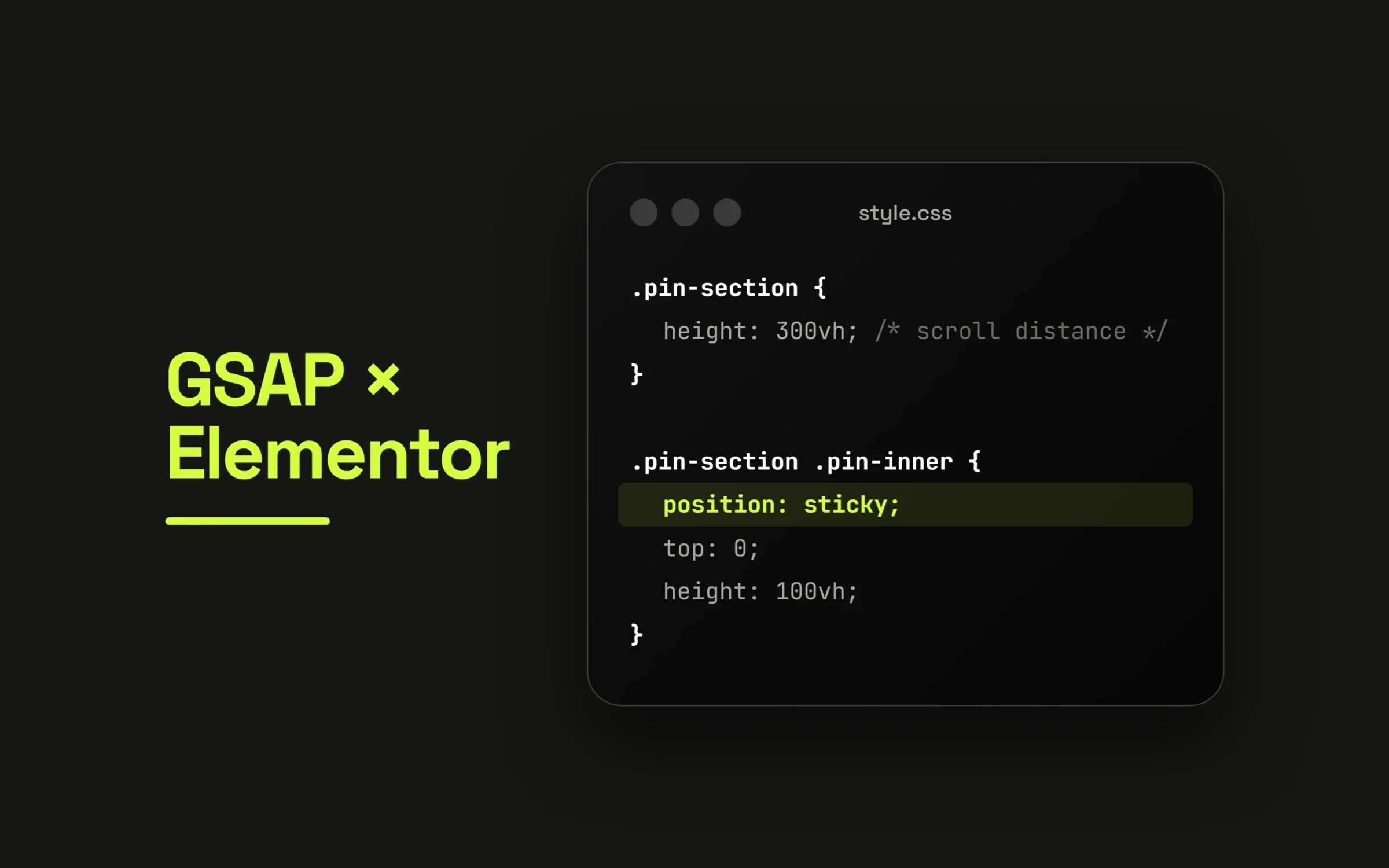
CSS handles the pin with position: sticky. It never touches the DOM, it respects Elementor’s structure, and the browser handles it natively.
.pin-section {
  height: 300vh; /* scroll distance */
}
.pin-section .pin-inner {
  position: sticky;
  top: 0;
  height: 100vh;
}
ScrollTrigger then only tracks progress. No pin option:
gsap.timeline({
  scrollTrigger: {
    trigger: '.pin-section',
    start: 'top top',
    end: 'bottom bottom',
    scrub: true
  }
})
.to('.pin-inner .card', { yPercent: -100, stagger: 0.2 });
The result looks identical to a GSAP pin, but the markup Elementor built stays untouched.
One rule makes sticky work: no parent can have overflow: hidden. In Elementor, check the section and container overflow settings first. That’s the most common reason sticky “does nothing”.
Two more problems worth solving early
Too many refreshes at once. ScrollTrigger recalculates positions when the page changes size or content loads. With several animated widgets on one page, each one can trigger its own refresh at the same moment, and the page stutters or crashes. In my plugin, every module calls one shared, debounced refresh function instead of calling ScrollTrigger.refresh() directly:
window.GEA_refresh = (() => {
  let t;
  return () => {
    clearTimeout(t);
    t = setTimeout(() => ScrollTrigger.refresh(), 150);
  };
})();
Mobile viewport jumps. On phones, the address bar shows and hides as you scroll, which changes the viewport height and can make sections jump. Using svh units for full-height sections and telling ScrollTrigger to ignore mobile resize events keeps things stable:
ScrollTrigger.config({ ignoreMobileResize: true });The takeaway
In a page builder, the best animation code is the code that changes the least. Let CSS hold things in place, let GSAP handle the motion, and keep one source of truth for recalculating positions.
It’s less clever than a pin, but it survives editor updates, theme changes and real users on real phones. In production, that matters more.